Upgrades
Typically, devices can be safely upgraded by flashing them with the new version, which is done by connecting to the device over a USB cable. If not, you need to perform an over the air upgrade.
Normal upgrades
For a device you can connect over USB, follow the Flash the firmware on companions instructions.
To be on the safer side, it's always a good time to perform a backup.
Just make sure to avoid doing an "erase"!
This page specifically concerns upgrades on repeaters, which can be trickier because they are often harder to reach physically. If you can connect a USB cable to the repeater, just do so and flash the firmware
OTA upgrades
Advanced users only
Over-the-air (OTA) upgrades are risky and should be used only if remote access is inconvenient, or if you have a secondary device to run a first test run on.
Beginners shouldn't need to follow those instructions.
You should also not do your initial flash over the air, it's not worth it!
Warning
Only use this for upgrades and only if you performed the above Boot loader OTA fix!
Once your device is correctly flashed for OTA (over the air) upgrades, you should be able to perform upgrades remotely. This is typically done from an Android phone, but can also be done from a Linux computer, or even from a drone.
This guide will cover Android and Linux.
Android
The official OTA guide and the Ottawa Mesh guide use a proprietary Android app to flash an image remotely. A few tips:
-
if you have a custom Android firmware, you might not have access to the App store and the nRF Device Firmware Update app. You can add this GitHub repository to Obtainium instead, which works fine.
-
you must change the settings in the app before flashing the upgrade, if you get a timeout, it's because the settings are wrong.
-
flashing over Bluetooth is slow, we're seeing 3KB/s transfer speeds
Here is a full procedure, but see the official or Ottawa mesh guide if it fails (and let us know):
-
install the nRF Device Firmware Update app (source code which can be installed through Obtainium)
-
configure the right settings in the app which is called
DFU:- Packet receipts notification - ON
- Number of packets - 8
- Request high MTU (Android only) - OFF
- Disable resume - ON
- Prepare object delay - 0 ms
- Force scanning - ON
Leave the other settings untouched.
-
download the right firmware for your device in the MeshCore web flasher interface, make sure you pick the
.zipfile! -
connect to the device command-line, which should be accessible over the LoRa management interface
-
type the following magic command:
start otaThis will show the Bluetooth MAC address of your device, which can be used to identify it below.
-
back in the app, start the update, by tapping
Selectand picking the.zipfile you downloaded earlier -
select the device which should show up as something like
SENSECAP_SOLAR_OTAand also show the MAC address above -
press start
This will go through various steps. If you have messed up the settings, it will like timeout at the
DFU initializedstep. Otherwise it should show a progress bar and transfer rate after that. -
you're done!
Linux (graphical)
If you don't own an Android phone or want to avoid proprietary software, or generally are not a fan of installing apps and upgrading software with your thumbs, you can use a Linux computer (and, in fact, a small device like a Raspberry Pi) to (remotely!) upgrade a device "over the air" (OTA).
This guide is based on the code written by the Slovakian crew who gave us the amazing drone upgrades but we'll stay modest and only use their desktop application for this guide.
Start at step 2 if you already have the application installed.
-
install the application
this can be done by cloning the repository or installing the binary. We'll assume you're familiar with git and will clone the repository (otherwise follow the upstream instructions):
git clone https://github.com/recrof/nrf_dfu_py -
install dependencies
You might already have it installed through a package, on Debian for example:
sudo apt install python3-bleak python3-tk -
launch the application
cd nrf_dfu_py python dfu_gui.py -
download the right firmware for your device in the MeshCore web flasher interface, make sure you pick the
.zipfile! -
connect to the device command-line, which should be accessible over the LoRa management interface
-
type the following magic command:
start otaThis will show the Bluetooth MAC address of your device, which can be used to identify it below.
-
back in the application, start the update, by hitting
Browse ZIPand picking the.zipfile you downloaded earlier -
select the device which should show up as something like
SENSECAP_SOLAR_OTAand also show the MAC address above -
review the settings
Typically, the defaults Just Work, but you might want to review the upstream instructions.
-
click
START UPDATE
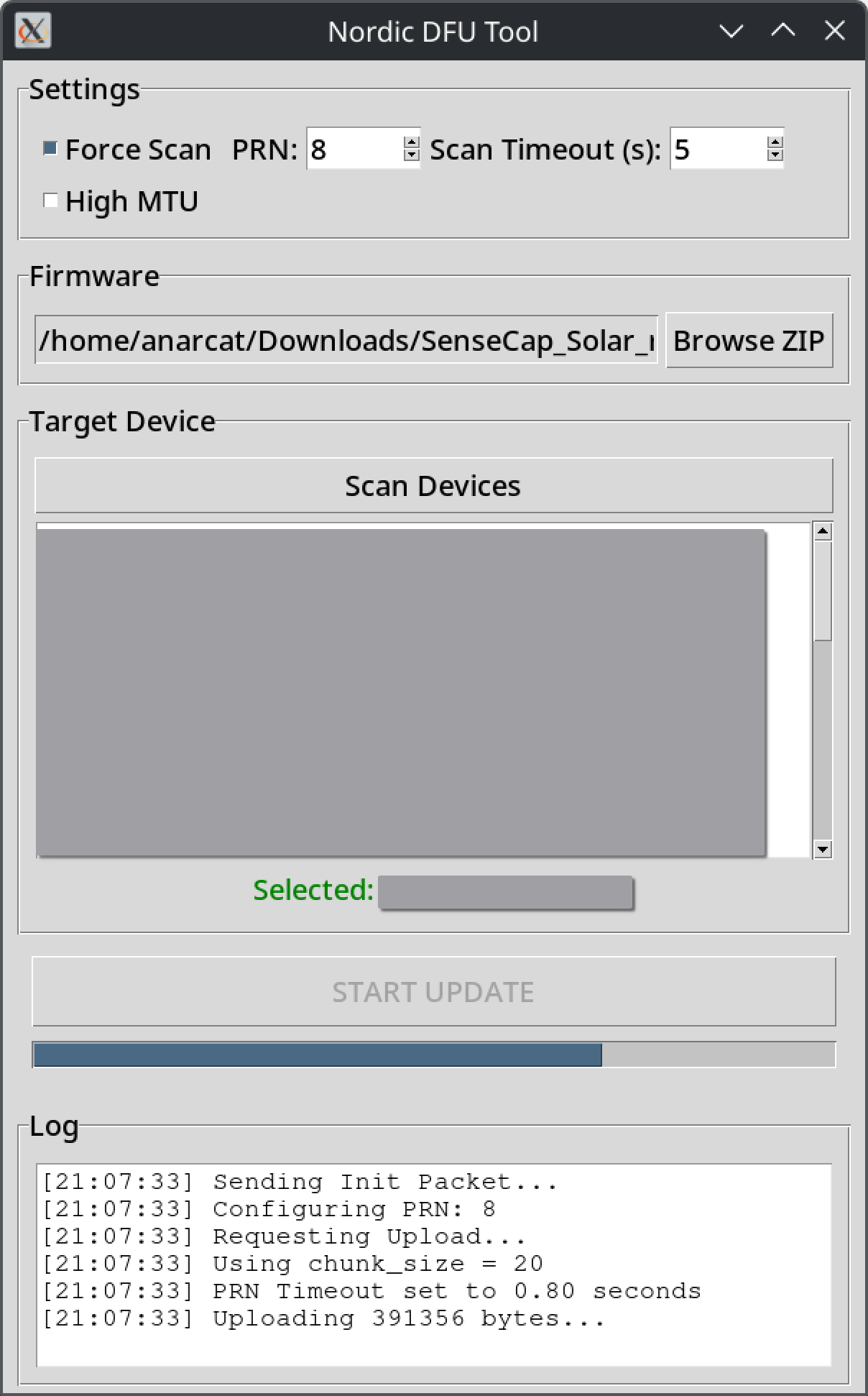
The update takes about a minute and will look like this:
Linux (command line)
You can also do this from the command line. The command is simple and magic:
python dfu_cli.py --scan firmware.zip MyDevice
You can also target multiple devices, customize retries, etc. See the upstream guide for more details. Here's an example of upgrading a SenseCAP:
git clone https://github.com/recrof/nrf_dfu_py || true
wcurl https://flasher.meshcore.io/releases/download/repeater-v1.17.1/SenseCap_Solar_repeater-v1.17.1-d929643.zip?repo=github
python ./nrf_dfu_py/dfu_cli.py --scan SenseCap_Solar_repeater-v1.17.1-d929643.zip SENSECAP_SOLAR_OTA
The URL comes from the flasher.meshcore.io site, and should be
updated to follow the release you want to flash.
Warning
This is untested. The GUI version was done and works and the command line likely works similarly well.